USB Screen Share - Phone to TV
- 3.8
- Rating
- 10.00M
- Installs
- Free
- Price
 Analysis by App-foxy
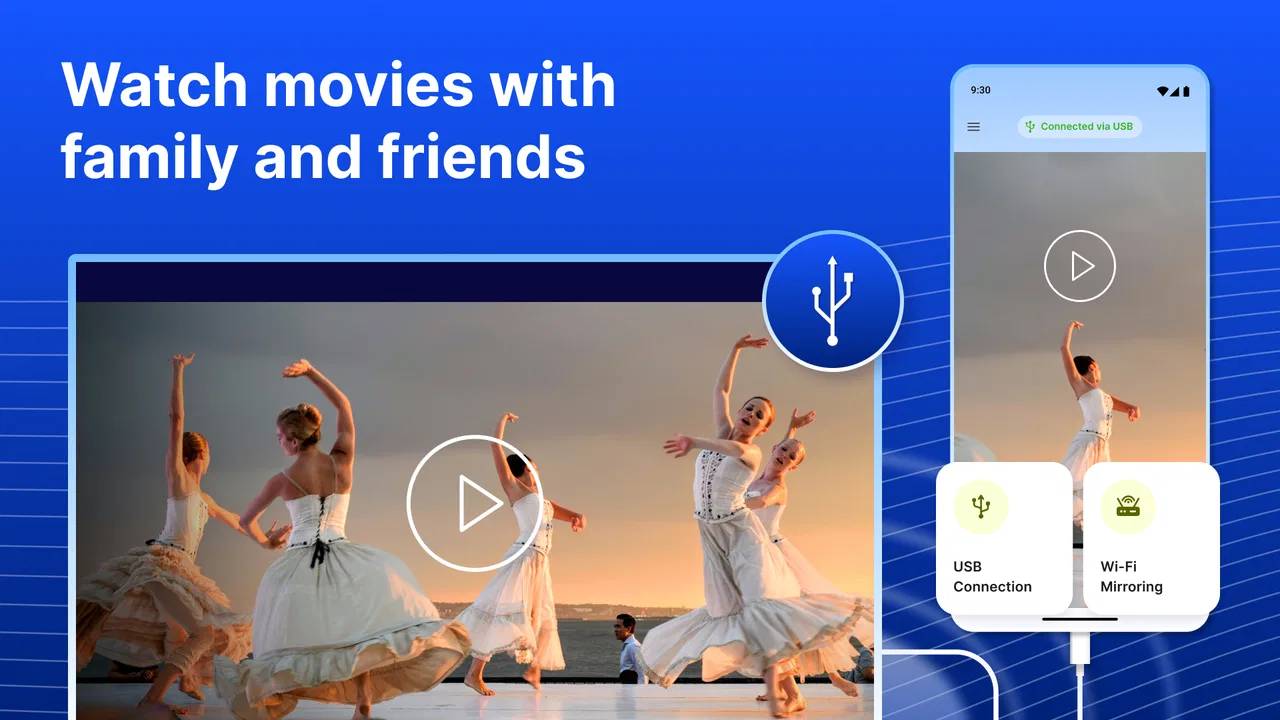
Connecting a phone to a television sounds simple until the moment you are standing beside the TV with a cable in one hand and a room full of people waiting for the picture to appear. USB Screen Share - Phone to TV is aimed at that exact situation: it is a free personalization app from Battery Stats Saver that helps you approach phone-to-TV sharing through USB and HDMI connections. I found its appeal less in flashy extras and more in the promise of making a familiar hardware task easier to understand.
The app has a 3.8 average from around 76 thousand ratings, with more than 10 million installs. Those figures suggest that many Android users have at least tried this kind of connection workflow, although the rating also hints that results can depend heavily on the phone, television, adapter, and cable involved. That is important here: this is not a magic replacement for compatible hardware. It sits between your phone and the display setup, so the quality of the experience depends on how well those pieces work together.
What the app is really useful for
In my experience, the most sensible way to view this app is as a guide and access point for USB screen sharing rather than as a universal wireless casting solution. The store summary focuses on connecting a phone to a TV through USB and HDMI, while the short description presents it as USB screen sharing. That makes the intended use fairly clear: you are dealing with a physical connection, not simply choosing a television from a list and expecting the screen to appear.
You May Also Like

 Blood Strike: 2.5 Anniversary
Blood Strike’s Loadouts Turn Every Drop Into a Tactical Gamble
A close look at Blood Strike’s custom loadouts: how fast access to signature weapons reshapes its battle royale rhythm, rewards preparation, and narrows the gap between fights.

 Pandora - Music & Podcasts
Pandora’s Music Is Easy to Start, but Harder to Recover
Pandora’s strength is its low-effort path from a seed to a station. Its weak spot is how much confidence it asks you to place in connection, setup, and quiet recovery.

 8 Ball Pool
 Is Built on Rivalries, Rematches, and Routine
A close look at the rivalries, rematches, shared routines, and unanswered safety questions that turn a quick pool match into a persistent mobile community.

 Samsung Music
’s Quiet Strength Is Playing What You Already Own
Its reach comes less from spectacle than from dependable access to a personal library. That simplicity is both the app’s strongest retention engine and its ceiling.

 AccuWeather: Weather Radar
AccuWeather Review: A Quick, Clear Forecast for Everyday Decisions
For everyday plans, the best forecast is the one you can understand quickly. AccuWeather makes rain timing, radar, and local conditions easy to act on, with a few trade-offs.

 Hill Climb Racing
Why Hill Climb Racing Still Turns Crashes Into One More Run
A tiny car, a bumpy hill and one more upgrade: Hill Climb Racing keeps resurfacing because its simple chaos makes every near-miss feel personal.
More From Our News Desk



That distinction matters when comparing it with the usual alternatives. Built-in wireless casting on many Android phones can be quicker when both devices are already compatible and connected to the same network. A television manufacturer’s own app may offer more control over that brand’s ecosystem. An HDMI adapter used directly, without an additional helper app, can also be preferable for someone who already knows exactly which port and cable combination is required.
Where this app makes more sense is for a person who wants a starting point before experimenting with those connections. If you are unsure whether your setup should use USB, HDMI, or an adapter between the two, having a focused screen-sharing app can be less intimidating than searching through unrelated casting tools. I would recommend it to someone who wants to explore a wired phone-to-TV setup, not to someone expecting every television to become compatible instantly.
The app belongs to the Personalization category, which is a slightly unusual home for a connection utility. Still, that placement reflects the practical result: changing how your phone presents itself on a larger screen. It is available free of charge, carries an Everyone age rating, and runs on Android devices using version five or later. The current version is 1.1.6, so users with older phones should still check whether their particular hardware handles the connection properly before relying on it for an important presentation or family event.
A realistic living-room test
Imagine you have photos or a video on your phone and want to show them during a visit. The television is already mounted, its remote is difficult to find, and nobody wants to spend ten minutes navigating menus. With a suitable cable or adapter ready, this app can serve as the first place to organize the attempt. I would open it before connecting anything, identify the intended USB or HDMI route, and then keep the phone unlocked while checking whether the TV recognizes an input.
The useful insight is that the app is only one part of that chain. A USB cable that charges the phone may not carry the kind of display signal your setup needs. An HDMI connection may require a phone-compatible adapter rather than a simple charging lead. If the television shows a blank screen, changing the app repeatedly is unlikely to fix a cable or adapter limitation. Thinking of the app as a setup companion, rather than the entire solution, prevents a lot of wasted time.
I would also prepare the TV input before beginning. Many failed attempts are not really app failures; the television is simply looking at the wrong HDMI source or has not switched to the relevant USB input. Keeping the remote nearby and checking each physical connection in order gives the app a fair chance to help. This small workflow is more valuable than repeatedly tapping a connection button without knowing which port the TV is using.
Why network conditions still affect the experience
Although the central idea is a USB or HDMI connection, the broader screen-sharing experience can still be shaped by the environment around it. If you begin by searching for a wireless alternative, the phone and television may need to discover each other over the same home network. A crowded or unreliable network can make that route frustrating, which is one reason a wired approach remains attractive for certain situations.
I would not treat this app as proof that every connection is independent of networking. The available description emphasizes physical connections, but it does not establish that every feature or every phone-to-TV method works without a network. That is why I would test the exact setup in advance rather than promise that it will function in a hotel room, classroom, or venue with no internet access.
There is a useful trade-off here. Wireless casting is convenient because you can move around with the phone, but it adds device discovery and network compatibility to the list of things that can go wrong. USB and HDMI reduce some of that uncertainty, yet they introduce their own requirements: the right adapter, a compatible phone, an available TV port, and a cable capable of carrying the expected signal. This app is most helpful when it leads you toward a clear wired workflow instead of making you assume that one method fits all devices.
For a home network that works well, wireless casting may still be faster for casual viewing. For a meeting or a visit where you want to avoid depending on the television finding your phone automatically, a physical connection can feel more predictable. I see the app as valuable precisely in that middle ground, where you want the larger screen but do not want to guess your way through every setting.
Using it away from home
Mobile contexts are where expectations need the most care. At home, you may have several cables, a familiar TV, and enough time to troubleshoot. At a friend’s house, in a rental apartment, or in a classroom, you may have only your phone and whatever adapter happens to be in your bag. In those situations, the app can help you think through the connection, but it cannot remove the physical requirements of the display.
My practical advice is to treat the cable and adapter as part of the app’s real setup. Before leaving home, I would test the phone with the intended television or monitor, confirm that the adapter fits securely, and note which input the display uses. This is especially useful if you plan to show documents, photos, or a short video and cannot afford to troubleshoot in front of an audience.
Another non-obvious consideration is phone position. A wired connection can limit how far you can stand from the television, and the cable may place strain on the phone’s port if it hangs from the side. I would put the phone on a stable surface, keep the cable from pulling downward, and avoid walking around while connected. These details do not sound exciting, but they make a noticeable difference during longer viewing sessions.
The app is also a better fit for people who prefer a tangible setup. Some users find wireless menus confusing because every brand uses different names for casting, mirroring, or sharing. A USB-to-HDMI path is easier to visualize: phone, adapter, HDMI cable, television input. If you think in those physical steps, the app’s purpose becomes clearer. If you want a completely cable-free experience, a dedicated wireless casting tool is likely a better match.
What to do when the screen stays blank
Failure recovery is the part I would take most seriously. A blank TV screen does not immediately tell you whether the issue is the app, the cable, the adapter, the phone, or the selected input. The fastest approach is to isolate one link at a time rather than changing everything simultaneously.
First, confirm that the television is on the same input used by the HDMI cable or the relevant USB connection. This is easy to overlook, especially on a TV with several ports.
Next, reseat both ends of the cable and check whether the phone reacts at all. A loose connection can look exactly like an unsupported setup.
Then try the phone’s screen with the app open and unlocked. If the display still does not respond, restart the connection rather than repeatedly tapping through menus.
Finally, test the cable and adapter with another compatible arrangement if one is available. That helps separate a hardware problem from an app problem.
This sequence is one of the most useful ways to approach the app because it prevents false conclusions. If the television never detects a signal, reinstalling a personalization app is unlikely to solve a missing display capability. On the other hand, if the TV recognizes the input but the phone does not present the expected screen, returning to the app’s connection instructions may be worthwhile.
I would also avoid making the first test during an important event. Try the setup with a short photo session or a simple video before relying on it for a presentation. That gives you time to discover whether the phone heats up, whether the cable is too short, or whether the television behaves differently after switching inputs. The best recovery plan is often a small amount of preparation.
There is another practical limitation: a wired connection can make charging awkward. Depending on the phone and adapter arrangement, the port may be occupied by the display connection, leaving no convenient place to charge at the same time. I would begin with a well-charged phone and keep a power bank available if the session may be long. That is a hardware trade-off, not something the app can necessarily control.
Data-conscious use and in-app costs
Because the app is free to install, it is easy to try without committing money at the beginning. It does include in-app purchases ranging from $0.99 to $99.99 per item, so I would pay attention to any purchase screen and avoid assuming that every part of the experience is included at no cost. For a simple connection attempt, I would first establish whether the basic workflow meets my needs before considering any optional purchase.
From a data-conscious perspective, a physical USB or HDMI route is appealing because the visible screen transfer is handled through the cable rather than relying on a wireless home network. That can be useful when you are trying to avoid consuming mobile data or when the available network is unreliable. Still, I would not interpret the wired focus as a guarantee that every part of the app operates without connectivity. The safest habit is to install and explore it before travelling, while you still have time to check how your particular setup behaves.
There is also a privacy advantage to thinking locally about the connection. Showing a photo or document on a nearby TV through a cable avoids the need to discover other devices on a shared network. That does not make every wired arrangement automatically private, but it can reduce the number of network-based steps involved. I would still disconnect the cable when finished and check that the TV has returned to its normal input, especially in a shared space.
For families, the Everyone rating makes the app broadly approachable, but I would still supervise purchases and setup on a shared phone. The important issue is not age so much as understanding which cable is being used and what the television will display. A child may be able to start the connection, but an adult should handle adapters and keep the phone secure near the TV.
Who should choose it, and who should skip it
I would choose this app if I had an Android phone, a television with a suitable USB or HDMI path, and a desire for a guided wired-sharing attempt. It is particularly suitable for people who are comfortable carrying an adapter but less comfortable interpreting technical connection instructions. Its large install base shows that the general problem is common, while the middling average rating reminds me to keep expectations realistic.
I would skip it if I wanted a guaranteed one-tap wireless experience, a television-brand remote, or a complete media-center platform. Someone who mainly streams from established services may be better served by the TV’s own apps or a dedicated streaming device. Likewise, if your phone does not support the required kind of external display connection, no helper app can turn an incompatible port into a working HDMI output.
The app is also not my first choice for professional presentations unless I have tested the exact phone, adapter, cable, and projector beforehand. A presentation-focused tool or a laptop may offer a more dependable fallback. For casual photos, short clips, and personal viewing, the risk is easier to manage. For work, I would bring a second connection method.
Battery Stats Saver has kept the product focused around phone-to-TV sharing, but the developer name may lead some users to expect battery-monitoring features. I would judge it by its USB and HDMI purpose instead. That expectation check matters because the app is not something I would install for battery statistics or general phone customization; its value is tied to the display connection task.
My connectivity verdict
After looking at the complete workflow, I see USB Screen Share - Phone to TV as a practical but hardware-dependent helper. Its free entry point, Everyone rating, and support for Android five or later make it accessible to a broad group of users. The current 1.1.6 version gives the app a clear identity, but the real result still depends on the phone’s display capabilities and the cable arrangement in front of you.
I like the wired emphasis for situations where wireless discovery is inconvenient or where I want a more deliberate connection between the phone and television. I also appreciate that the concept is easy to explain: prepare the physical link, select the correct TV input, open the app, and test the screen. The downside is equally clear: the app cannot overcome incompatible adapters, unsupported phones, loose cables, or a television set to the wrong source.
My recommendation is to install it before you need it, test it with your own equipment, and keep a backup plan for anything important. Do not buy an expensive adapter solely on the assumption that the app guarantees compatibility, and do not confuse a charging cable with a display cable. If your priority is a simple wired screen-sharing attempt, this app is worth trying. If your priority is effortless wireless casting, a built-in phone feature or a dedicated streaming solution will probably suit you better.
The best reason to use it is not that it removes every connection problem, but that it gives a wired phone-to-TV setup a clearer starting point. That makes it useful for prepared, everyday sharing, while its limitations are easy to accept as long as you remember that the app, the phone, the adapter, and the television must all cooperate.
FAQs for USB Screen Share - Phone to TV
01What devices are compatible with USB Screen Share - Phone to TV?
USB Screen Share - Phone to TV is compatible with most Android and iOS devices that support USB connectivity. However, it's essential to check the specific requirements on the app's download page to ensure your device supports the necessary USB protocols for screen sharing.
02Does USB Screen Share - Phone to TV require an internet connection?
No, USB Screen Share - Phone to TV does not require an internet connection for its core functionality. The app uses a USB connection to mirror your phone’s screen to the TV, making it a great option for offline usage, such as during travel or in areas with limited connectivity.
03Are there any additional accessories needed for USB Screen Share - Phone to TV?
Yes, you will need a compatible USB cable to connect your phone to the TV. Depending on your devices, you might need an adapter, such as a USB-C to HDMI adapter, to establish a connection. Ensure your TV has a USB input or the necessary ports for adapters.
04Is USB Screen Share - Phone to TV easy to set up and use?
Yes, the app is designed with user-friendliness in mind. After downloading, simply connect your phone to the TV via USB, and follow the on-screen instructions. The intuitive interface guides you step-by-step, making it accessible even for those who are not tech-savvy.
05Does USB Screen Share - Phone to TV support audio transmission as well?
Unfortunately, USB Screen Share - Phone to TV focuses on video mirroring, and audio support may depend on your device and TV capabilities. Some setups may require additional configurations or separate audio connections to ensure sound is transmitted along with video.
Pros
- Easy setup with minimal steps.
- Supports multiple device connections.
- High-quality video streaming.
- Compatible with most smart TVs.
- User-friendly interface.
Cons
- Requires strong Wi-Fi connection.
- Limited customization options.
- May lag on older devices.
- Ads can be intrusive.
- No support for non-smart TVs.

USB Screen Share - Phone to TV
Gallery